
IPTV Smarters Pro is one of the most popular and user-friendly IPTV apps available today. It allows you to watch live TV, movies, series, catch-up TV, and even multi-screen content on many devices, including smartphones, Smart TVs, Android boxes, Firestick, and computers.
One feature that really stands out is Catch-Up TV. Not many IPTV apps support this feature. In the past, catch-up was mainly available on MAG boxes, but IPTV Smarters Pro makes it accessible on modern devices as well.
Important note: IPTV Smarters Pro is only a media player. It does not include channels by default. You need an active IPTV subscription to use it.
Devices Supported by IPTV Smarters Pro
IPTV Smarters Pro works on a wide range of devices:
- Android smartphones and tablets
- iPhone and iPad (iOS)
- Smart TVs (Samsung and LG)
- Android TV and Android boxes
- Apple TV
- Windows and macOS computers
- Amazon Firestick and Fire TV
It’s one of the best options if you want to watch IPTV across multiple devices. Another alternative app is GSE Smart IPTV, but this guide focuses on IPTV Smarters Pro.
Where to Download IPTV Smarters Pro Safely
The safest place to download IPTV Smarters Pro is from the official website:
Below are direct options depending on your device.
IPTV Smarters Pro for Android (APK File)
If you’re using an Android phone, Android box, or Android Smart TV, you can download the APK file directly:
After downloading the file, install it and open the app.
IPTV Smarters Pro on Samsung Smart TV
- Press the Smart Hub button on your Samsung TV remote
- Search for IPTV Smarters Pro
- Install the app
Compatible version: 1.0.4
IPTV Smarters Pro on LG Smart TV
- Press the Home button on your LG TV remote
- Open the LG Content Store
- Search for IPTV Smarters Pro
- Install the app
Compatible version: 1.0.8
IPTV Smarters Pro on iPhone, iPad, and Apple TV
You can download the app from the Apple App Store using the link below:
IPTV Smarters Pro on Windows and macOS
Windows (EXE file):
https://www.iptvsmarters.com/download/?download=windows_app
Mac (DMG file):
https://www.iptvsmarters.com/download/?download=mac
Download the file, install it, and launch the app.
IPTV Smarters Pro on Firestick
- Install the Downloader app from the Amazon Appstore
- Go to Settings → My Fire TV → Developer Options
- Enable Install unknown apps
- Allow permission for Downloader
- Open Downloader and paste the IPTV Smarters Pro APK link
- Download and install the app
How to Add IPTV Channels to IPTV Smarters Pro
There are two ways to add IPTV channels to IPTV Smarters Pro:
- Xtream Codes API (recommended)
- M3U Playlist
We recommend using Xtream Codes API because:
- Catch-up works properly
- EPG (TV Guide) loads automatically
- Setup is faster and more stable
Method 1: Set Up IPTV Smarters Pro Using Xtream Codes API
Step 1: Install and Open the App
Install IPTV Smarters Pro on your device and open it.
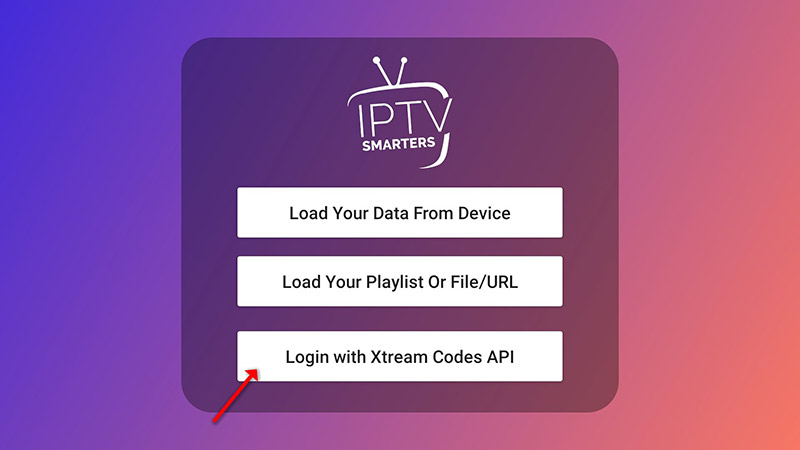
Step 2: Choose Xtream Codes Login
Click on Add User, then select Login with Xtream Codes API.
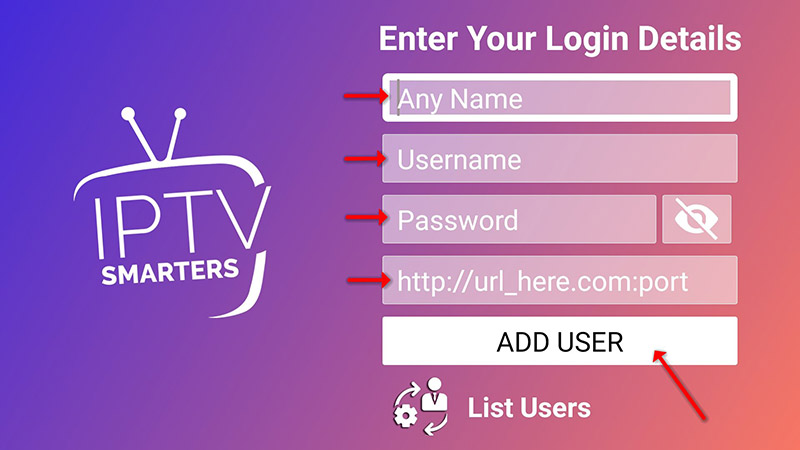
Step 3: Enter Your IPTV Login Details
Fill in the fields as follows:
- Any Name: for example, IPTV Xtream
- Username: provided by your IPTV service
- Password: provided by your IPTV service
- Server URL: found in your M3U line or IPTV dashboard
Some IPTV providers give you a dashboard where you can easily find these details.
Note: The server URL can be different for Samsung and LG Smart TVs.
After filling in the details, click ADD USER.
Step 4: Wait for Content to Load
The app will now load channels, movies, and series. This may take a few seconds.
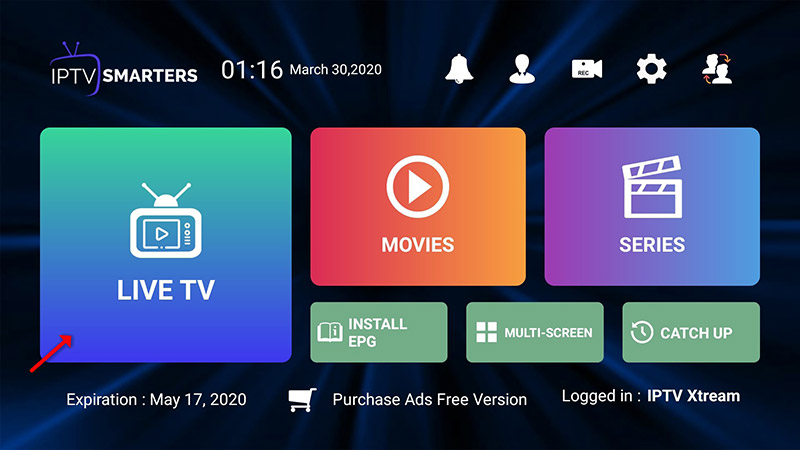
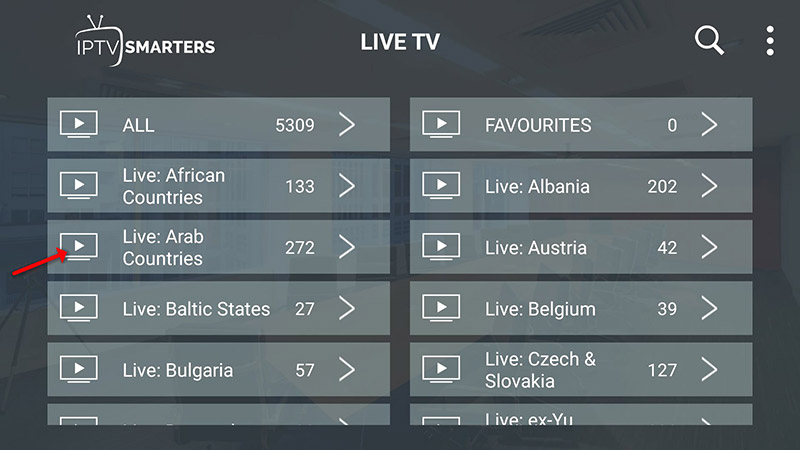
Step 5: Open Live TV
Click on the Live TV icon from the home screen.
Step 6: Select a Channel Group
Choose the category or channel group you want to watch.
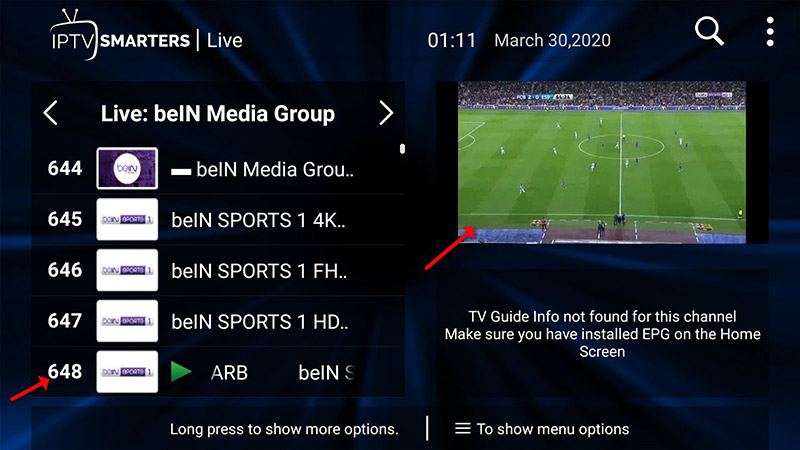
Step 7: Watch in Full Screen
Click on a channel, then double-click the preview screen to switch to full-screen mode.
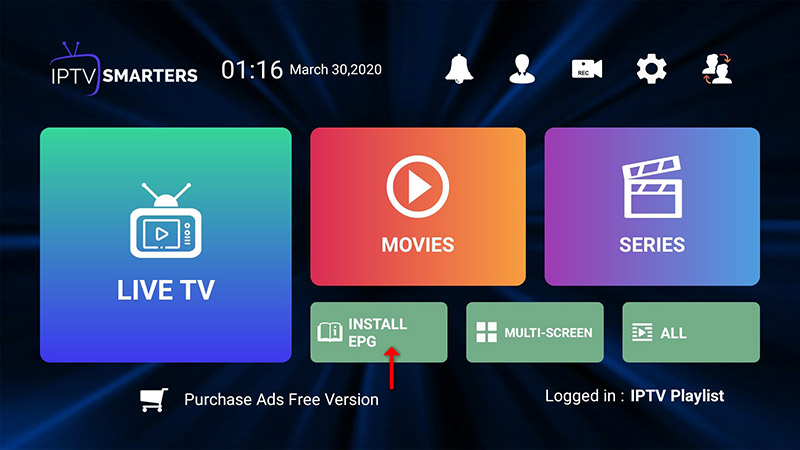
Step 8: Install EPG (TV Guide)
With Xtream Codes, you don’t need to add an EPG URL manually.
Just click Install EPG, and the guide will load automatically.
LG and Samsung Smart TV Special Setup
For LG and Samsung Smart TVs, you may need to use the following URL:
Enter your username and password from your IPTV provider.
Method 2: Set Up IPTV Smarters Pro Using M3U Playlist
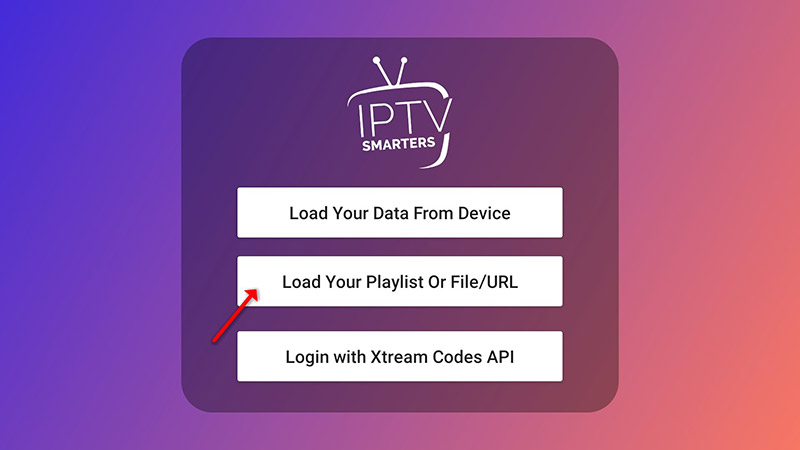
Step 1: Open the App and Add User
Click Add User, then choose Login with Playlist.
Step 2: Enter Playlist Details
- Playlist Name: for example, IPTV Playlist
- Select M3U URL
- Paste the M3U link provided by your IPTV service
Some IPTV providers also provide a dashboard where you can find your M3U link.
Step 3: Install EPG (Optional)
Click Install EPG and enter the EPG URL if your provider supplied one.
Step 4: Start Watching
Go to Live TV, select a channel group, then choose the channel you want to watch.
Enjoy!
IPTV Smarters Pro Features
- Live TV, movies, and series
- Catch-up TV
- Program recording
- Multi-screen (watch up to 4 channels at the same time)
- Electronic Program Guide (EPG)
- Parental controls
- Built-in powerful video player
- External player support
- Dynamic language switching
- Clean and user-friendly interface
Final Thoughts
In this guide, we explained two different ways to set up IPTV on IPTV Smarters Pro. For the best experience, we recommend using Xtream Codes API whenever possible.
If you have questions or run into any issues, feel free to leave a comment and discuss it below.
Leave a Reply