
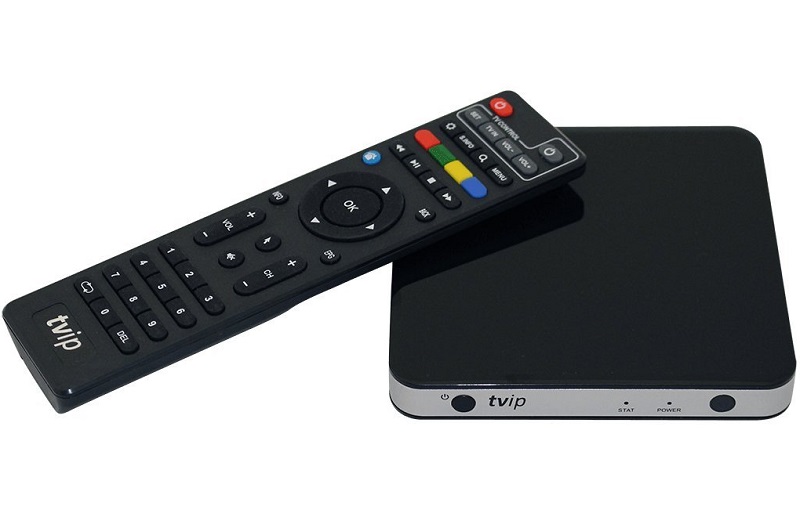
The TVIP Box is a powerful IPTV and multimedia device designed to meet modern streaming needs. It supports live TV, video on demand (VOD), high-quality digital channels, and access to OTT services such as YouTube, weather apps, online entertainment, and more. It also includes a built-in web browser.
TVIP boxes are very similar to MAG boxes and use a system that closely emulates MAG embedded software, which makes them popular for IPTV users who want a stable and reliable setup.
Important: TVIP Box does not include IPTV channels by default. You need an active IPTV subscription to use it.
What Is a TVIP Box?
TVIP boxes are IPTV media players that work with:
- Web portals (MAG-style portals)
- M3U playlists
- IPTV middleware platforms
They are commonly used as an alternative to MAG boxes and offer flexibility depending on your IPTV provider.
How to Add IPTV Channels to TVIP Box (New Version)
This tutorial applies to newer TVIP models such as:
- TVIP 605
- TVIP 615
If you are using an older model (for example TVIP 410), you will either need to update the operating system or follow the old version setup guide further below.
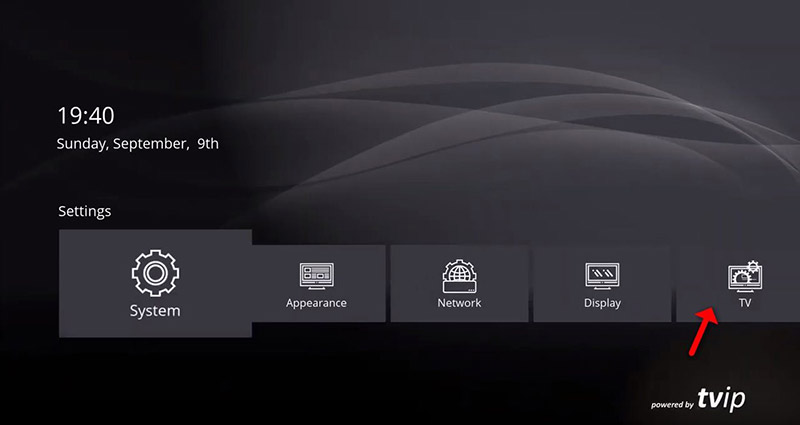
Step 1: Open TV Settings
After starting your TVIP Box and completing the basic setup (language, time, network):
- From the main menu, scroll down
- Open Settings
- Select TV
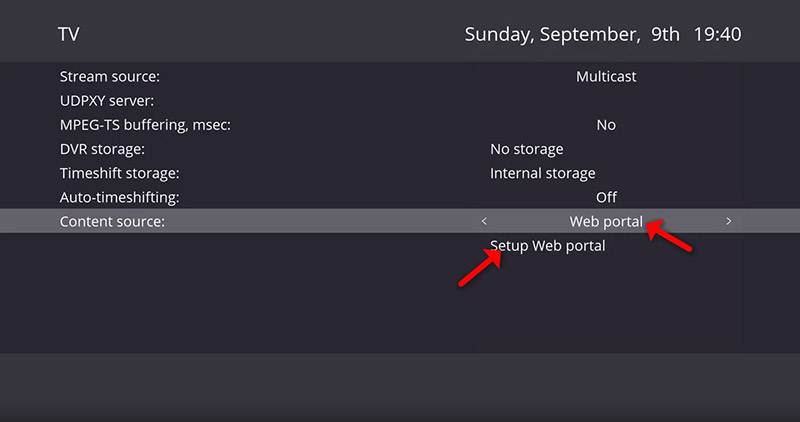
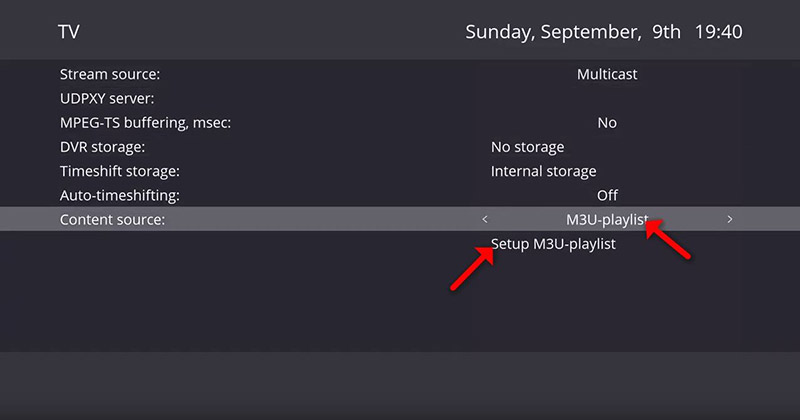
Step 2: Set Content Source to Web Portal
- Change the Content Source to Web Portal
- Click on Setup Web Portal
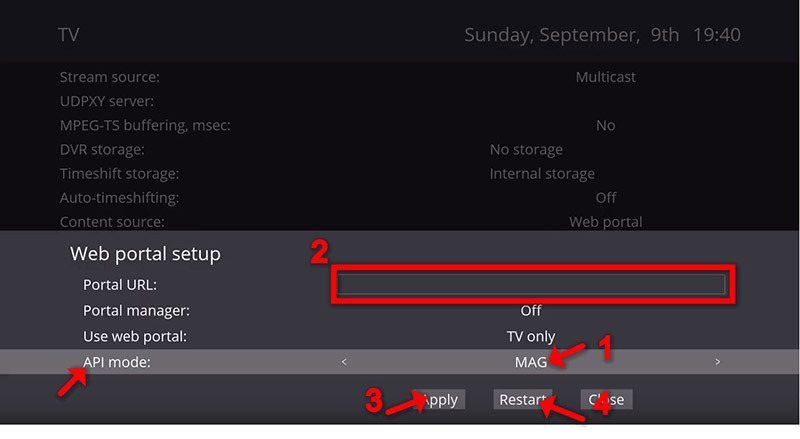
Step 3: Enter Portal URL and API Mode
- Change API Mode to MAG
- In Portal URL, enter the portal address provided by your IPTV service
- Click Apply, then Restart
Note:
If MAG API is not available in your settings, select GSTB API instead.
Add MAC Address to IPTV Dashboard
After setting the portal URL, you must register your TVIP Box MAC address with your IPTV provider.
- Many IPTV providers offer a dashboard where you can add the MAC address yourself
- You can also send the MAC address directly to your IPTV provider
Tip:
You can find the MAC address on the back of the TVIP Box.
Step 4: Load IPTV Channels
After the restart:
- Go back to the main menu
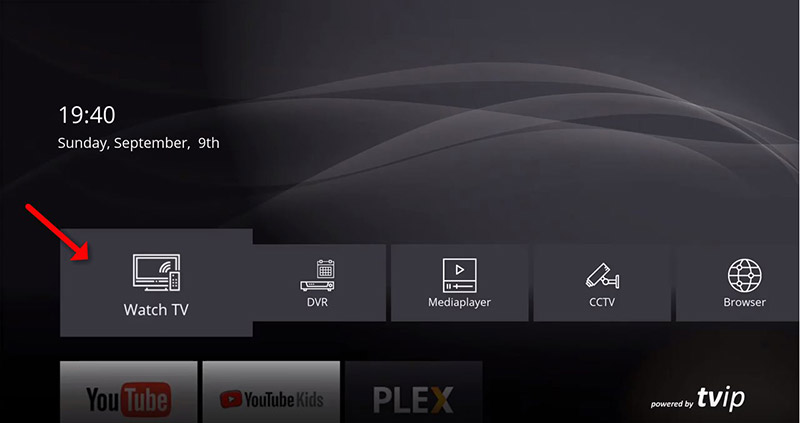
- Click Watch TV
- Wait while the portal loads your channel list
This may take a few minutes.
Step 5: Start Watching
Once the channels load, they will appear automatically.
Select any channel and start watching.
How to Add IPTV Channels to TVIP Box Using M3U Playlist
If your IPTV provider uses M3U playlists, follow this method.
Step 1: Change Content Source
In Step 2 of the main setup:
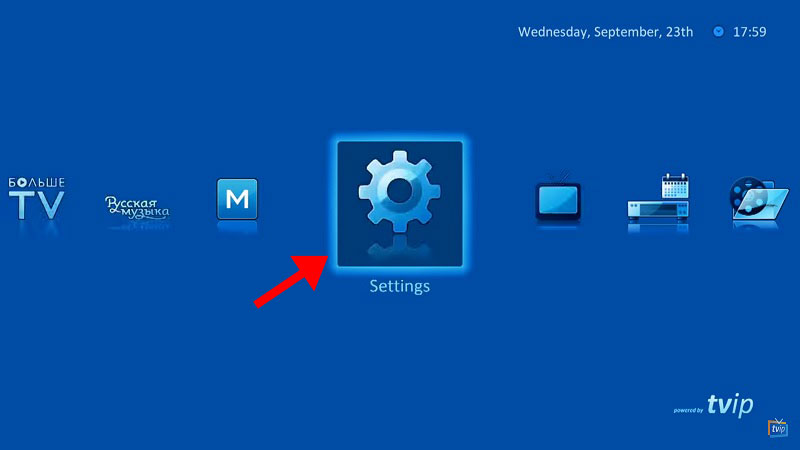
- Change Content Source to M3U Playlist
- Click Setup M3U Playlist
Step 2: Enter M3U URL
- Paste the M3U URL provided by your IPTV service
- Click Apply
- Restart the box
After restart, the playlist will load automatically.
How to Set Up IPTV on TVIP Box (Old Version)
This method applies to older TVIP models.
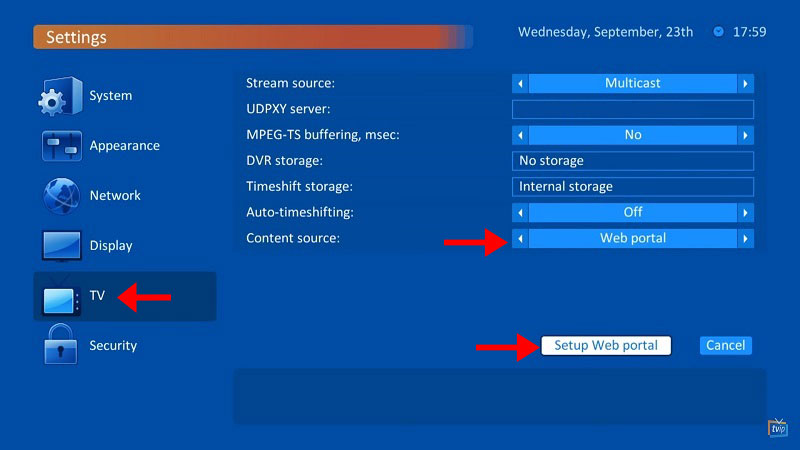
Step 1: Open Settings
From the main menu, open Settings.
Step 2: Open TV Settings
- On the right menu, select TV
- Change Content Source to Web Portal
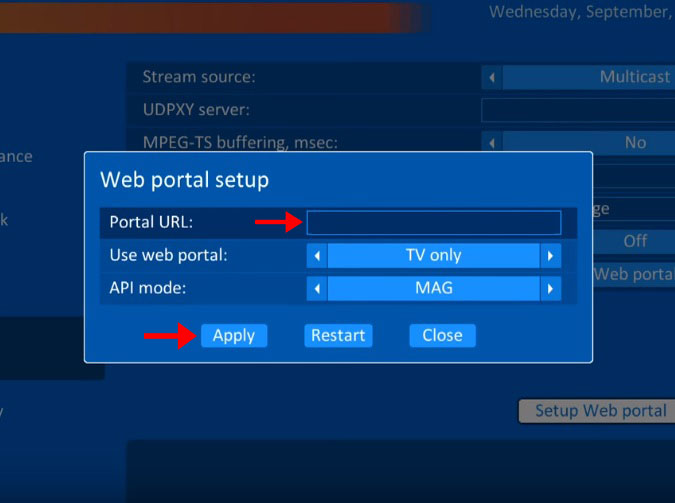
- Click Setup Web Portal
Step 3: Enter Portal URL
- Enter your IPTV Portal URL
- Click Apply
Then register your MAC address with your IPTV provider.
Step 4: Load Playlist
After saving the portal URL, wait for the portal to load the playlist.
This may take a few minutes.

Step 5: Watch Channels
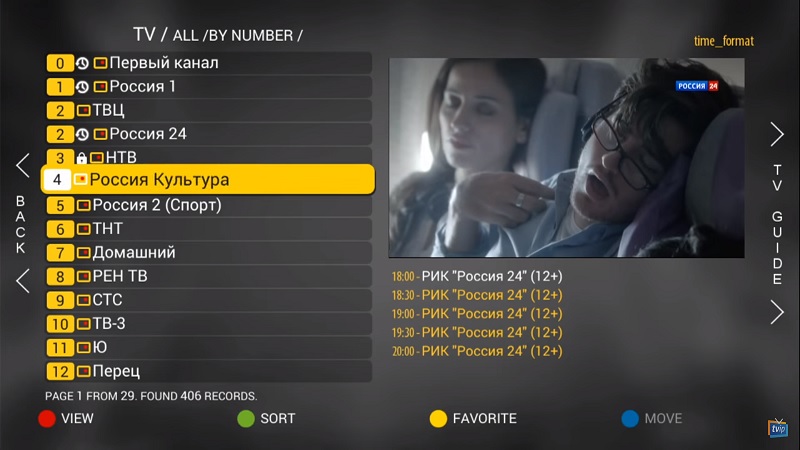
Once loaded, channels will appear automatically.
Select a channel and start streaming.
Features of TVIP Box
TVIP boxes offer a wide range of advanced features:
- Support for IPTV middleware portals (Stalker, custom middleware)
- M3U playlist support (no middleware required)
- Built-in media player (USB and LAN playback)
- Support for custom Android APKs
- Windows file sharing (Samba)
- USB and SD card support
- Supported file systems: FAT16/32, NTFS (read), NFS, ext2, ext3
- Streaming protocols: RTSP, RTP, UDP, IGMP, HTTP
- Time-shift using USB or SD card
- EPG support (XMLTV and JTV)
- Air mouse support
Powerful Hardware Performance
TVIP media centers use modern multi-core CPUs, allowing smooth playback of live TV, VOD, and future multimedia applications. This ensures long-term usability and stable performance.
USB and Media Support
All TVIP S-Box models include USB host ports. You can connect:
- USB flash drives
- External hard drives
- Keyboards
- Wireless remotes
You can play videos and music directly from external storage.
Supported formats include AVI, MKV, MP4, multi-channel audio, and subtitles.
High-Quality WiFi and Remote Control
TVIP boxes support:
- WiFi 2.4 GHz
- WiFi 2.4 / 5 GHz
They also include a learning remote control:
- Strong, durable build
- Soft rubber buttons
- Learning function for TV control
- Settings remain saved even after battery replacement
Setup is fast and reliable.
Final Thoughts
Setting up IPTV on a TVIP Box is straightforward, whether you’re using a web portal or an M3U playlist. Newer models offer more flexibility, while older models still provide a stable IPTV experience when configured correctly.
If you have questions or run into issues, feel free to discuss them in the comments.
Leave a Reply